
Appearance
Install and set up
Setup is install, licenses, permission sets, first release. No servers, no code, no callouts.
1. Install the package
Install Release Notifier from the AppExchange listing into production or a sandbox. Install for Admins Only; access is granted through licenses and the packaged permission sets in the next steps.
2. Assign user licenses
Release Notifier is licensed per user. Your plan includes a number of user licenses (5 on Free, 50 on Standard and Enterprise). Assign them in Setup > Installed Packages > Manage Licenses > Add Users.
A user without a license is blocked from the app by Salesforce itself, even if a permission set is assigned. Sandboxes copy licenses from production on refresh; users created directly in a sandbox need a license assigned there.
3. Assign permission sets
The package ships four permission sets. Assign them in Setup > Permission Sets:
| Permission set | Who gets it | What it allows |
|---|---|---|
| Release Notifier User | Everyone who should read releases | What's New, Ideas & Issues, User Preferences |
| Release Notifier Content Creator | People who write releases | Everything above, plus creating and editing releases and templates |
| Release Notifier Manager | Team leads, ops | Everything above, plus Acknowledgments tracking and Banners |
| Release Notifier Admin | Your Salesforce admin | Everything, plus the Settings page |
A user with no permission set assigned sees an access denied message on every page.
4. Open the app and configure settings
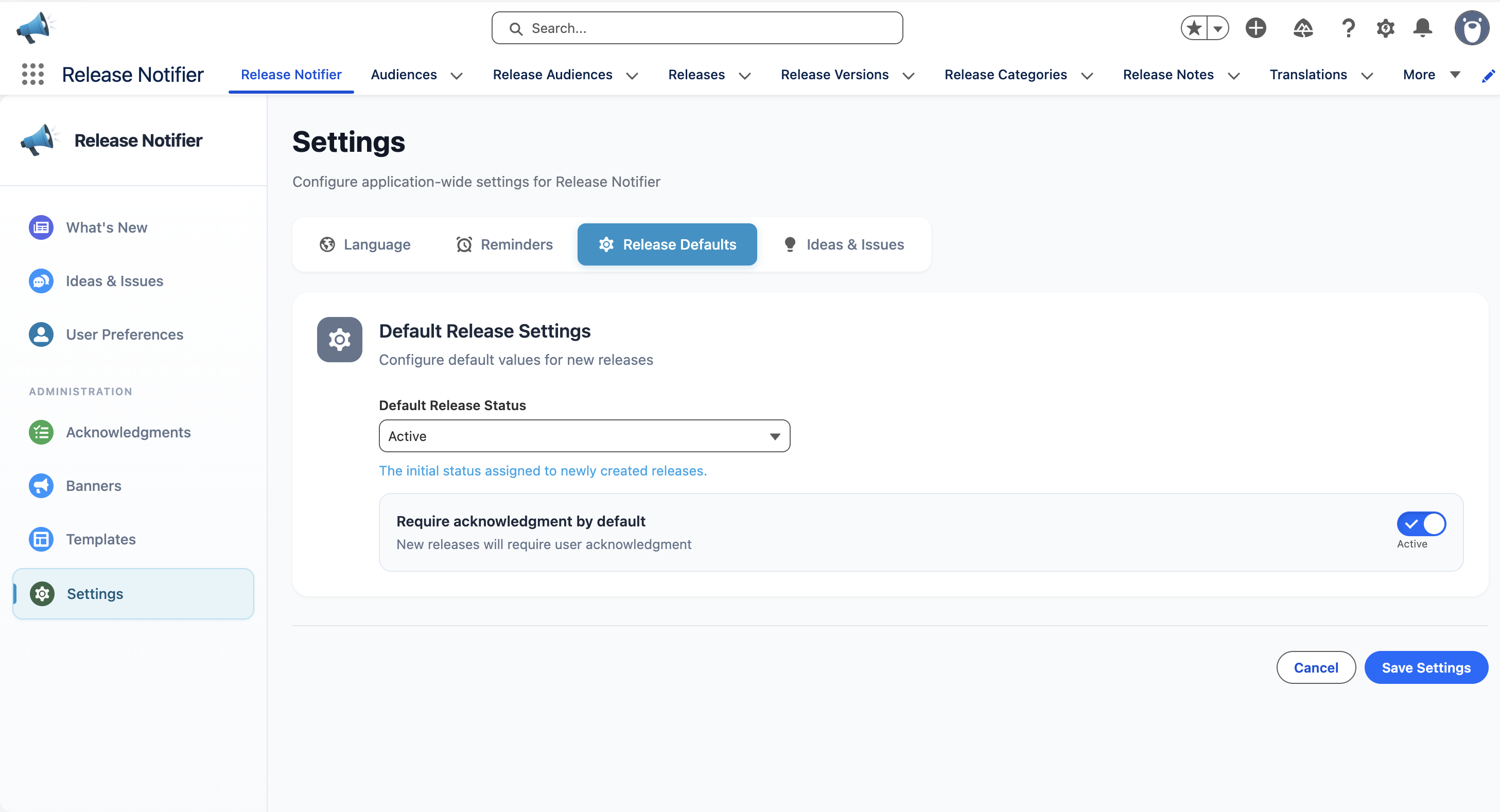
Open the Release Notifier app from the App Launcher. With the Admin permission set, open Settings in the left navigation:
- Default language for release content. Users can pick their own language later in User Preferences.
- Enable reminders to turn on acknowledgment reminders. Ticking it schedules the daily reminder job for you; nothing to do in Apex. Reminders are off until you tick it.
- Feature toggles for Ideas, Issues and the leaderboard (Enterprise plan).
5. Publish your first release
From What's New, create a release. The guided editor has five steps: Release, Categories, Release Notes, Audiences and Translations. Mark each step as ready and publish. See Create and publish releases.
Requirements
- Lightning Experience. Salesforce Classic is not supported.
- No external services: the package makes no callouts and stores everything in custom objects in your org.
- Each active release that requires acknowledgment with a due date schedules one Apex job for its deadline, which counts toward the org's 100 scheduled jobs.